Commissioning
Initial configuration
Recommendation for use
Recommendation for use: For the initial configuration, a connection to a PC is required.
Connecting the 24 VDC power source
The device can be supplied via a 24 VDC power source. The corresponding plugs are included in the scope of delivery (4-pin plugs).
Connect the device with the appropriate power source.
Connecting the RJ45 network cable
When placing into operation for the first time, a connection is required between the device and a PC via an RJ45 network cable.
Connect the device to a PC:
Device LAN connection ↔ PC LAN connection
Manual configuration of the network adapter
Recommendation for use
Recommendation for use: The procedure described in the following was prepared using the Microsoft Windows operating system as an example. If you are using another operating system, the paths and properties described here may vary.
Open the properties of your network adapter. The path is as follows:
Network connections > LAN connection > Properties (right mouse-key).
In the dialogue tab that appears, select option: Internet protocol (TCP/IP) and then click on Properties.
In the following window, select: Use the following IP address
Access to the device is only enabled if the following parameters are entered as the fixed IP address or if the computer is located in the same subnet space:
IP address: 192.168.0.100
Recommendation for use
Recommendation for use: The last set of digits must be a number between 1 and 253. In the example, "100" has been selected.
Once the IP address has been entered, the subnet mask address must be entered. Click on the Subnet mask field and the correct address is entered automatically.
Subnet mask: 255.255.255.0
Confirm your entries by clicking on OK.
Calling up the device web interface
Recommendation for use
Recommendation for use: The web interface of the device was optimised for the Mozilla Firefox browser. There may be functional limitations if a different browser is used.
To access and open the device web interface, start up your web browser. In the browser’s address bar, enter the following IP address and then confirm with Enter
http://192.168.0.254
Login
Once the IP address has been entered with success, the login prompt appears. The default settings are to be entered in the login prompt.
The default configuration on delivery is:
User name: admin
Password: admin
Confirm your entries by clicking on OK.
Recommendation for use
Recommendation for use: If the login prompt does not appear, check to ensure that the device has been connected via a RJ45 connection cable.
Otherwise, connect the device to a PC (Device LAN connection ↔ PC LAN connection). If there is still no connection to the firewall login screen, check the proxy and local firewall settings. Often, local subnet addresses (e.g. 192.168.x.x) are also diverted to a proxy server. In this case, it is possible to select the "Bypass proxy server for local addresses" option to enter the address in question.
The device web interface then appears
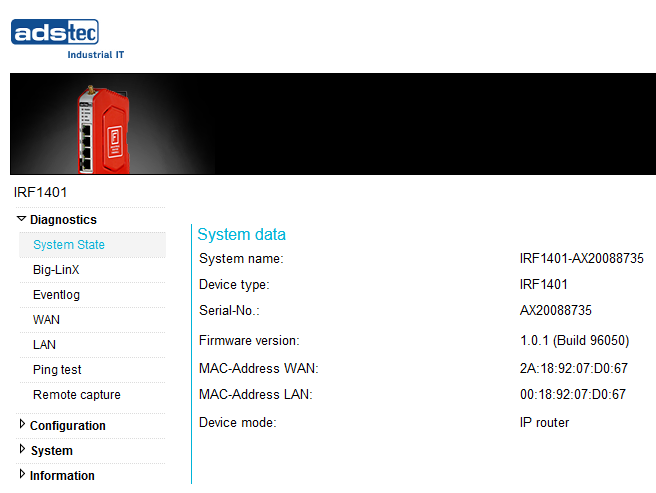 |
Follow the instructions of the commissioning wizard.
Startup mode
During this initial configuration, the device is in a special commissioning mode. Certain functions and interfaces of the device are deliberately restricted or specially configured to ensure that safety-critical configuration steps are implemented and to prevent unauthorised access.
-
In commissioning mode, the device does not route network packets between network interfaces. This prevents unintended communication between, for example, WAN and LAN.
-
The ads-tec Discovery Tool is only fully functional in commissioning mode. It allows you to set the IP address and detect devices in the network.
After completion of commissioning mode, i.e. in normal operation, the firmware prevents
-
sets IP addresses
-
and API calls that require authentication (e.g. password changes).
ADS-TEC Discovery Tools The ADS-TEC Discovery Tool uses a special Ethernet protocol with the EtherType number 0x890E. This software interface is activated by the system and cannot be deactivated.
Access options
The functionality of this interface is divided as follows:
Commissioning mode In commissioning mode, device settings and system parameters can be read and changed via this interface. Access requires the entry of a valid user name and password.
After commissioning (normal operation) Access via this interface is also possible in normal operating mode. However, only read access to the following information classified as public is permitted without a password:
-
Serial
-
MAC address
-
Hardware unique fingerprint
-
Factory default configuration fingerprint