Remote capture
Navigation: Diagnostics > Remote capture
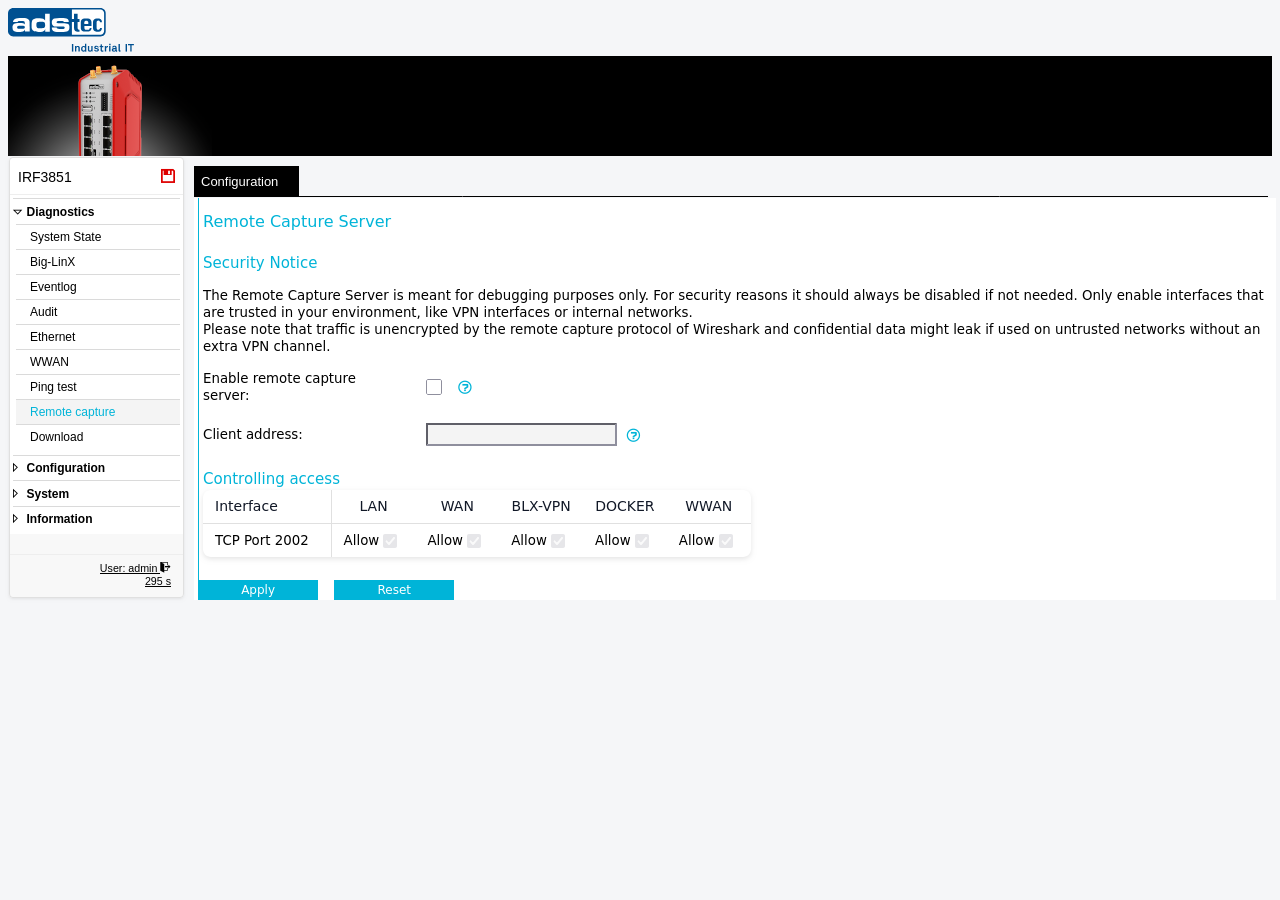
The Remote capture page configures the built-in remote packet capture server on the device. When enabled, this server allows a network analysis tool such as Wireshark to capture live traffic on any of the device's network interfaces remotely via the rpcap protocol on TCP port 2002. This is useful for diagnosing network issues, verifying firewall rules, or inspecting traffic flows without requiring physical access to the device or a mirror port. Only one capture session is permitted at a time.
Security
The Remote Capture Server is intended for debugging purposes only. The rpcap protocol does not support authentication — any client that can reach the server port can initiate a capture session. Furthermore, the captured traffic is transmitted unencrypted between the device and the analysis tool. If the capture connection traverses untrusted networks, confidential data from the captured packets may be exposed. For these reasons, only enable the service temporarily while actively diagnosing an issue, and disable it immediately afterwards. Only allow access on interfaces that are trusted in your environment, such as VPN interfaces or internal networks. If remote capture must be used across an untrusted network, route the capture traffic through a VPN tunnel.
Settings
Remote Capture Server
- Enable remote capture server
- Activates the rpcap server on TCP port 2002. When disabled, the device does not accept any remote capture connections. For security reasons, this service should always be disabled when not needed.
- Client address
- IP address of the permitted client. This field must be specified — the server only accepts capture connections from this single IP address. Only one capture session is allowed at a time.
Controlling access
The access control table determines on which network interfaces the remote capture server listens for incoming connections on TCP port 2002. Each column corresponds to a device interface (LAN, WAN, BLX-VPN, DOCKER, WWAN). Enable or disable access per interface by checking or unchecking the corresponding checkbox.
To minimize the attack surface, only enable access on interfaces where the capture client is connected. For example, if the analysis workstation is on the LAN side, allow access only on the LAN interface and disable all others. If the capture client connects through a Big-LinX VPN connection, allow access only on the BLX-VPN interface.
Connecting with Wireshark
To capture traffic remotely using Wireshark:
- Enable the remote capture server and enter the IP address of the Wireshark workstation in the Client address field.
- In Wireshark, open Capture > Options and add a remote interface: enter the device's IP address and port 2002 as the rpcap host.
- Select the device interface to capture from the list of available remote interfaces.
- Start the capture. Wireshark displays live traffic from the selected interface on the device.
- After completing the capture session, disable the remote capture server on this page.
Note
The remote capture server is a diagnostic tool, not a permanent monitoring service. Disable it after each troubleshooting session to reduce the device's attack surface.
Related pages
- Packet filter -- configure firewall rules to control traffic between interfaces
- Eventlog -- review system events for connection and firewall diagnostics
- Ping test -- verify basic IP connectivity from the device