Scheduler
Navigation: Configuration > Services > Scheduler
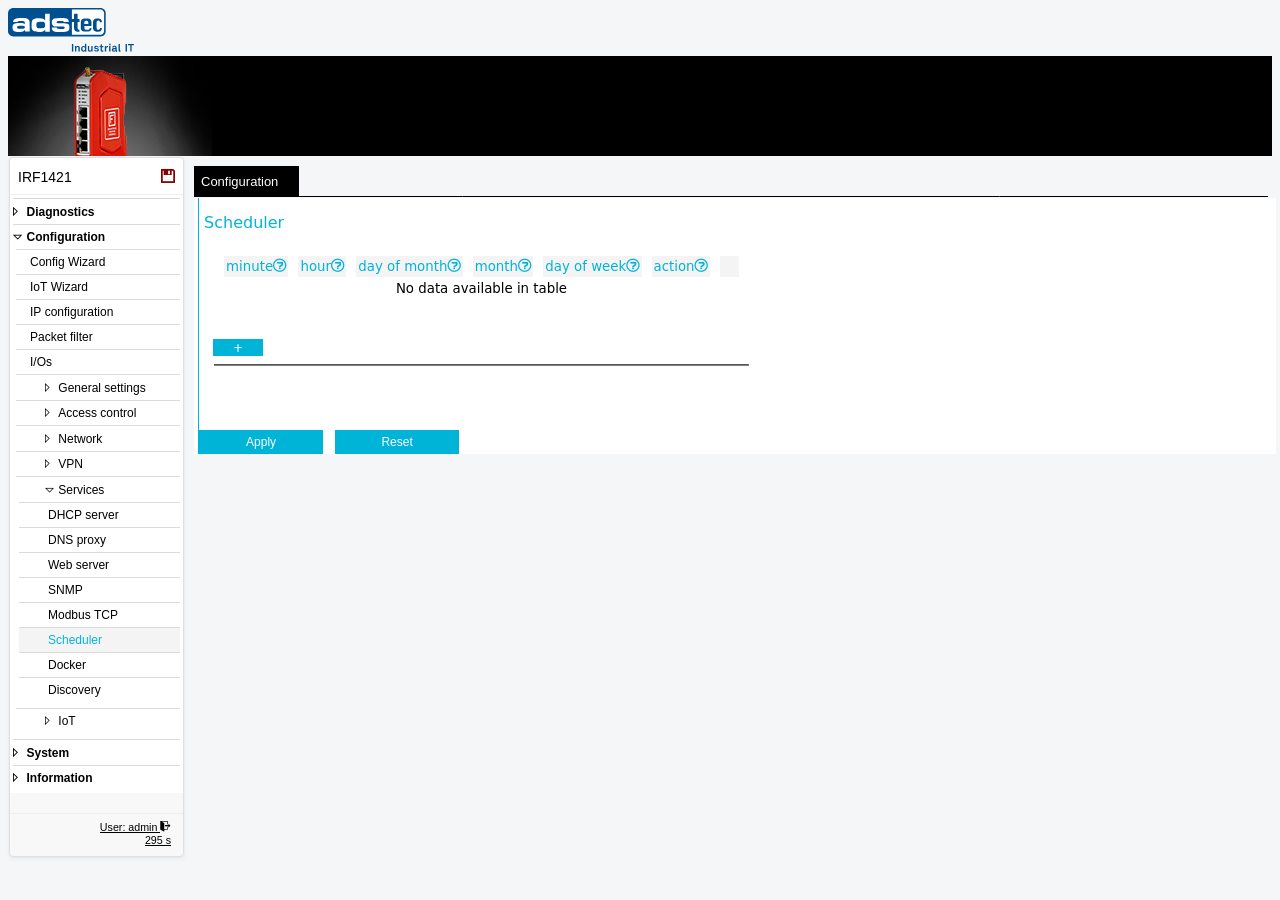
The Scheduler page allows time-based automation of recurring device actions on the IRF1000. Each scheduler entry defines a point in time — specified by minute, hour, day of month, month, and day of week — at which a selected action is executed automatically. The scheduling follows the established cron format, where an asterisk (*) in a time field means "every" (e.g., every hour, every day). Typical use cases include automatic reboots during maintenance windows, periodic configuration backups, or timed interface state changes. Multiple entries can be configured simultaneously to cover different schedules. Entries are displayed in a table and can be added or removed as needed. Changes take effect after clicking Apply settings, but must be saved persistently via the Save page to survive a reboot.
Prerequisites
- The system clock must be set correctly for scheduled actions to execute at the intended time. Configure the device clock and NTP synchronization on the Date & time page.
Settings
Scheduler table
Each row in the table defines one scheduled action. Click the + button below the table to add a new entry. Use the checkbox at the end of each row to select entries for deletion.
- minute
- The minute within the hour at which the action is executed. Valid values: 0--59.
- hour
- The hour at which the action is executed. Valid values: 0--23, or
*for every hour. - day of month
- The day of the month on which the action is executed. Valid values: 1--31, or
*for every day. - month
- The month in which the action is executed. Valid values: 1--12, or
*for every month. - day of week
- The day of the week on which the action is executed. Valid values: 0--6, where 0 is Sunday, 1 is Monday, 2 is Tuesday, 3 is Wednesday, 4 is Thursday, 5 is Friday, and 6 is Saturday. Enter
*for every day of the week. - action
- The action to be executed at the scheduled time. Select the desired action from the dropdown list.
ATTENTION
Scheduled actions such as a reboot will execute at the configured time without further confirmation. Ensure that the system clock is synchronized and that no critical operations are in progress during the scheduled time window. An incorrectly configured schedule (e.g., minute and hour set to *) may cause the action to execute repeatedly, potentially resulting in continuous reboots or other disruptive behavior.
Security
Restrict access to the Scheduler page to authorized administrators only, using the Permissions page. An unauthorized scheduler entry could be used to periodically reboot the device, causing a denial-of-service condition, or to trigger actions that weaken the security posture. Review all configured scheduler entries regularly as part of your security audit process.