Security
Navigation: Configuration > Access control > User accounts > Security
The Security tab configures global security policies for user sessions, password management, and login protection on the device. These settings apply to all user accounts and complement the per-account configuration on the main User accounts tab. Use this tab to enforce session timeouts, password reuse prevention, password expiration, and brute-force login protection. Changes take effect after clicking Apply, but must be saved persistently via the Save page to survive a reboot.
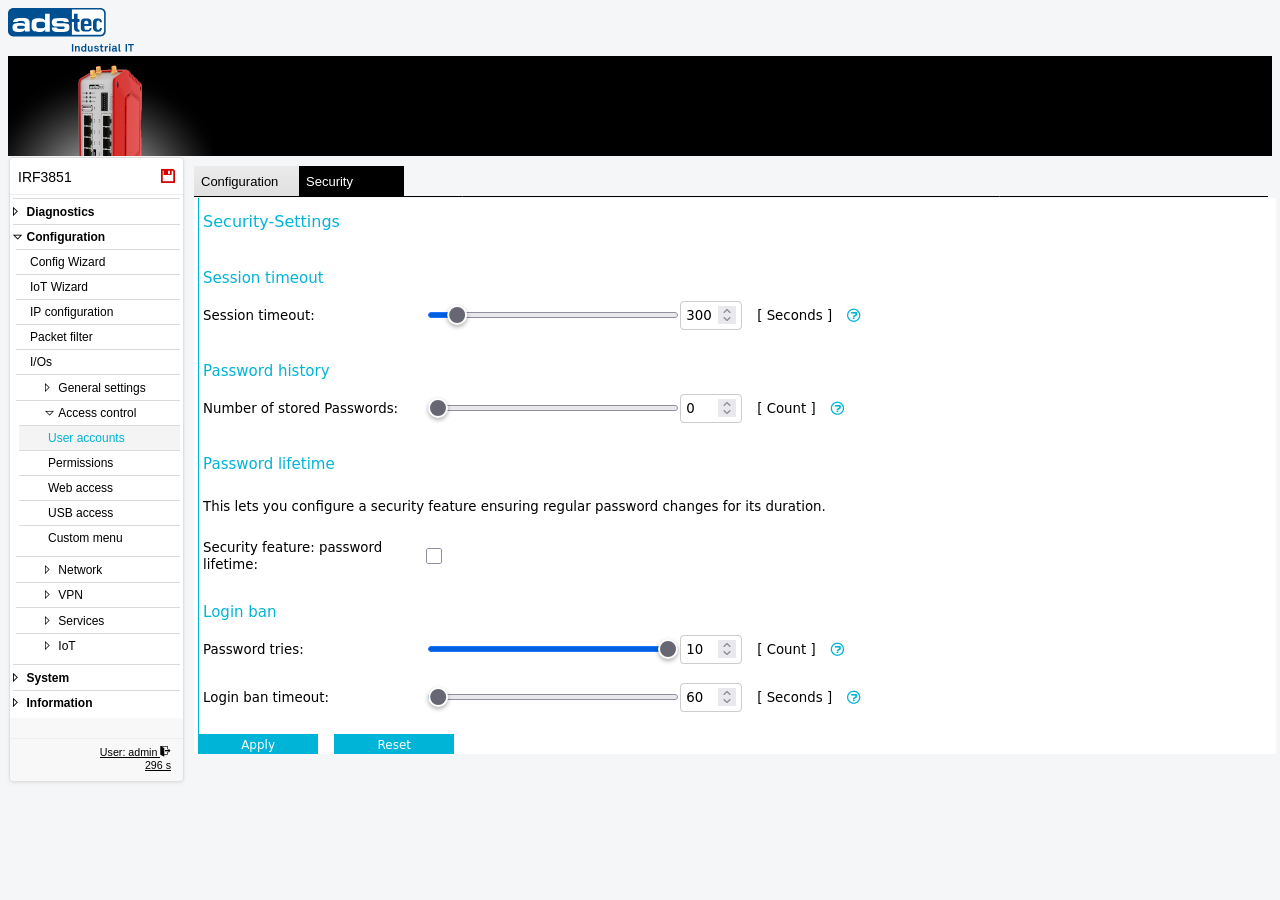
Settings
Session timeout
- Session timeout
- Sets the global idle timeout for all web interface sessions, in seconds. After this period of inactivity, the session expires and the user must log in again. Adjust this value according to your operational environment -- shorter timeouts improve security, while longer timeouts provide more convenience during extended configuration tasks.
Password history
- Number of stored Passwords
- The number of previous password hashes to store and check when a user sets a new password. When set to a value greater than 0, the device prevents users from reusing any of their last passwords. Set to 0 to disable password history checking.
Password lifetime
This section configures a security feature that enforces regular password changes.
- Security feature: password lifetime
- Enables or disables the password lifetime enforcement. When activated, the following lifetime settings are applied to all user accounts.
- Maximum password lifetime
- The maximum number of days a password may be used before the user is required to change it. After this period expires, the user is prompted to set a new password at the next login.
- Minimum password lifetime
- The minimum number of days a password must be kept before the user is allowed to change it. This prevents users from rapidly cycling through passwords to circumvent the password history check.
Login ban
- Password tries
- The number of failed login attempts allowed before the source network address is banned. Once exceeded, further login attempts from that address are blocked for the duration specified by the login ban timeout. Setting this value to 0 disables the login ban functionality and disables the logging of failed login attempts in the Audit log.
- Login ban timeout
- The duration, in seconds, for which a login from a banned network source is blocked after exceeding the allowed number of failed password attempts. Configure a sufficiently large timeout to effectively deter brute-force attacks without permanently locking out legitimate users.
ATTENTION
Setting the password tries value to 0 disables both the login ban and the audit logging of failed login attempts. This removes an important layer of brute-force protection and eliminates forensic visibility into unauthorized access attempts. Only disable the login ban temporarily and for specific diagnostic purposes.
Security
Configure a session timeout appropriate to your security requirements -- shorter timeouts reduce the window of opportunity for unauthorized access to unattended sessions. Enable password history with a sufficient depth (e.g., 5 or more stored passwords) to prevent password reuse. Activate the password lifetime feature to enforce regular password rotation in accordance with your organization's security policy and IEC 62443 recommendations. Set the login ban password tries to a low value (e.g., 5--10) and the login ban timeout to at least 60 seconds to effectively mitigate brute-force attacks. Monitor failed login attempts on the Audit page.