SCEP
Navigation: Configuration > General settings > SCEP
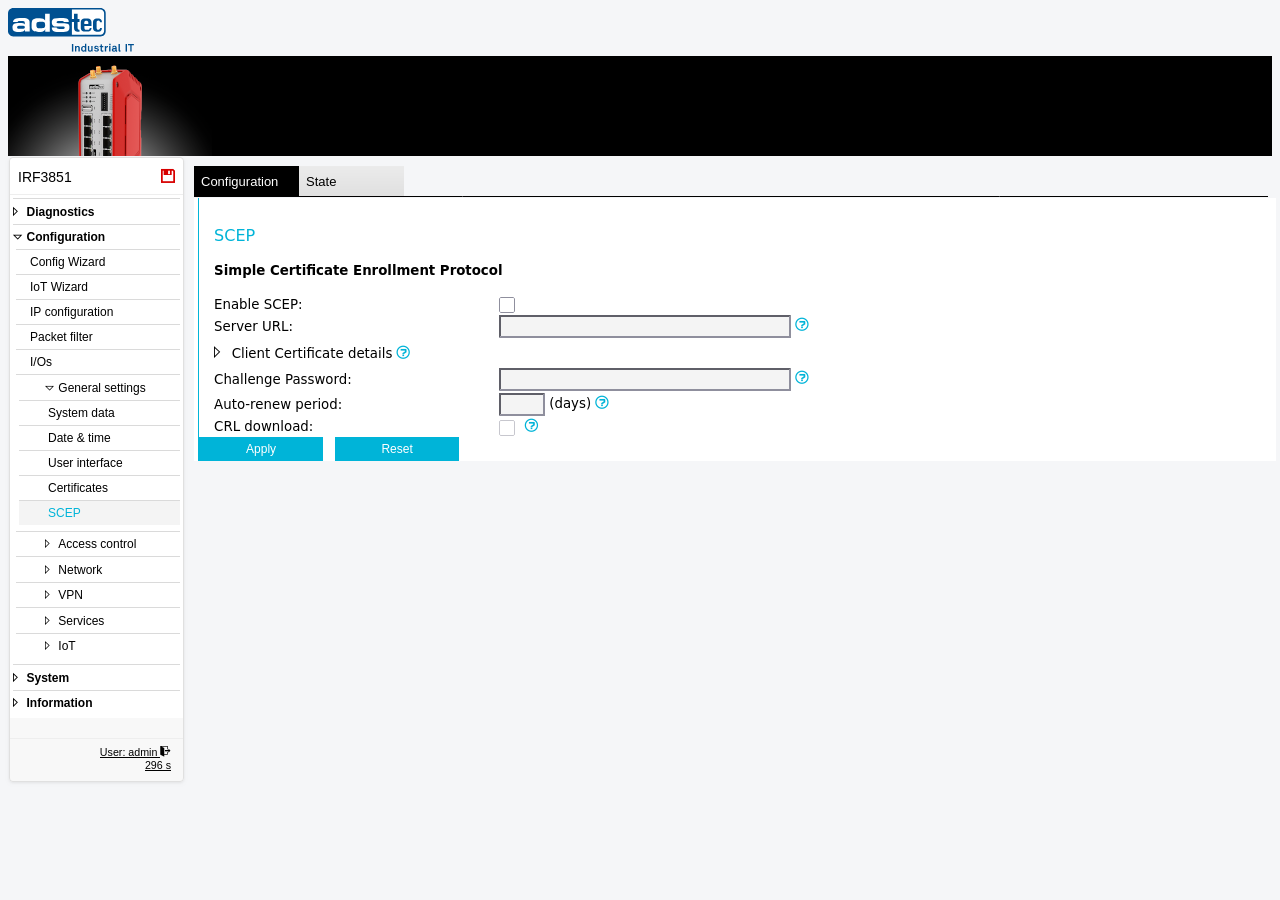
The SCEP page configures the Simple Certificate Enrollment Protocol (SCEP) client on the device. SCEP automates the process of requesting, obtaining, and renewing X.509 device certificates from a central SCEP server, such as a Microsoft Network Device Enrollment Service (NDES) or another SCEP-compatible Certificate Authority. This eliminates the need to manually generate, export, and upload certificates for each device. The page provides settings for the SCEP server URL, optional client certificate attributes, a challenge password for initial enrollment, automatic certificate renewal, and periodic CRL downloads. Certificates obtained via SCEP appear on the Certificates page and are available to all services that use X.509 certificates, including OpenVPN and IPsec.
Prerequisites
- A SCEP server must be accessible from the device over the network. Ensure that the network configuration on the IP configuration page and any Packet filter rules allow outbound communication to the SCEP server URL.
- If the SCEP server requires a one-time challenge password, obtain this password from your CA administrator before starting the enrollment.
- Verify that the device system time is correct on the Date & time page, as certificate validity checks depend on accurate time.
Settings
SCEP
- Enable SCEP
- Activates the SCEP client on the device. When enabled, the device contacts the configured SCEP server to request a certificate. When disabled, no SCEP enrollment or renewal takes place.
- Server URL
- URL of the SCEP server. For example:
http://192.168.0.1/certsrv/mscep/mscep.dll. The URL must point to the enrollment endpoint of the SCEP-compatible CA.
Client Certificate details
This expandable section allows specifying optional certificate attributes for the enrollment request. If no Common Name is configured, the DNS name of the device is used as the default.
Enrollment
- Challenge Password
- If the SCEP server requires a one-time challenge password for initial enrollment, enter it here. When a challenge password is configured, automatic certificate renewal is not possible, because the one-time password cannot be reused for subsequent renewal requests.
- Auto-renew period
- Number of days before certificate expiry at which the device automatically requests a renewed certificate from the SCEP server. For example, a value of 30 causes the device to initiate renewal 30 days before the current certificate expires. This option is disabled when a one-time challenge password is configured, as the password cannot be reused.
- CRL download
- When enabled, the device automatically downloads an up-to-date Certificate Revocation List (CRL) from the SCEP server every hour. This ensures that revoked certificates are detected in a timely manner. The downloaded CRL is used for revocation checking on the Certificates page.
ATTENTION
When a one-time challenge password is used for initial enrollment, automatic certificate renewal is not available. Plan for manual re-enrollment or use a SCEP server configuration that supports password-less renewal based on the existing device certificate. If automatic renewal is required, do not configure a challenge password.
Security
Only enable the SCEP client when automated certificate enrollment is required. Use HTTPS for the SCEP server URL whenever possible to protect the enrollment communication. Enable CRL download to ensure timely detection of revoked certificates. Restrict network access to the SCEP server to the minimum necessary paths using the Packet filter. Verify the SCEP server identity and CA certificate chain before enabling enrollment to prevent the device from trusting a rogue CA.